
The process of modding Zenless Zone Zero is much more established than in 2026, as there has been a large increase in the modding community surrounding it since then. Zenless Zone Zero's community now boasts a variety of modding options through 3DMigoto-based injection, audio modding tools, and a variety of trusted sources. This guide will cover how to do everything you need to set up to start modding Zenless Zone Zero on PC: what the PC installation looks like, how to get mods working using DX11 (this will trip up a lot of people), where to find working mods, how audio and visual mods work together, and what you'd have to do to avoid being banned while modding.
How To Mod Zenless Zone Zero On PC
Zenless Zone Zero can only be modded on a PC – the mobile version of the game does not give you access to the files or to any rendering hooks required for third-party mods. All modding described in this guide is for the Windows version, regardless of whether you are using HoYoPlay or Epic Games Store to launch it. The file structure for both the HoYoPlay and Epic Games Store versions is essentially identical, with the default installation path typically being C:\Program Files\HoYoPlay\games\ZenlessZoneZero Game\.
This file path is more important than you would think! No matter if you're using a launcher-based modding setup, or you're manually copying files, your mods will not work unless they are pointed to the correct folder that contains Zenless Zone Zero.
The basic concept of manual modding is that you would download a mod archive, extract it to a file directory, and then copy that file directory into a "Mods" folder next to an appropriate working version of 3DMigoto. Unfortunately, the game cannot read those files unless the loader injects them in at launch. Outside of the loader, those files do nothing but sit there and because of this, many players just use XXMI instead of trying to manage it manually.
XXMI Setup
For this application, we recommend using XXMI Launcher, a free and open-source application available on Github via the SpectrumQT repository. With the 2026 build, XXMI automatically detects Zenless Zone Zero, Genshin Impact, Wuthering Waves, and several other games. Using XXMI is convenient to manage multiple games.
Setting up XXMI is pretty straightforward. Here are the steps:
-
Open XXMI and click the + button to see the list of supported games.
-
Select Zenless Zone Zero and click Install, allowing XXMI to put the 3DMigoto loader files in the right place.
-
Move the mod folders you downloaded into the
Modsdirectory that XXMI has created. -
Launch ZZZ only through XXMI and not through HoYoPlay or Epic, so that the loader can hook before the game has fully loaded.
Folder structure can be an area of frustration. Each mod must have its own subdirectory in Mods, and the mod folder must contain relevant .ini files and any assets referenced by that mod (such as .dds textures and .buf vertex data). In most cases, if a mod's loose files are dumped into the main Mods folder, the loader will not properly recognize them.
Finally, having one directory per mod means that it is easier to manage them all. A simple way to disable a mod quickly is by giving it a new name with 'DISABLED ' as a prefix.
Running DirectX11 on Zenless Zone Zero
The most common cause of ZZZ install problems is that 3Dmigoto does not hook into Vulkan as ZZZ defaults to using it. Most Zenless Zone Zero mods use the DirectX11 render, which means that if you do not force DirectX11 while launching ZZZ the mods will show to be 'installed' – but will not work in-game.
You cannot use ZZZ.exe as the executable. You want to use ZenlessZoneZero.exe located in the binaries folder under the main game folder. The typical fix is to create a desktop shortcut to ZenlessZoneZero.exe and give it the -dx11 flag in the target path in the shortcut properties.
It will look like this:
C:...ZenlessZoneZero.exe -dx11
It is also a good idea to check the launch flag after major patches since they may reset launch preferences or launch flags. After that, the best solution is to use XXMI to point to the DirectX11 forced executable. If your mods still do not load, then that is where you should be troubleshooting.
Zenless Zone Zero Modding Tools and Locations
Where you source your mods is almost as important as how you install them. As of 2026, the three primary sources for ZZZ mods/tools are GameBanana, Nexus Mods and GitHub. GameBanana has the largest volume of ZZZ mods/tools, and its reporting system allows broken uploads to be reported very quickly. The website Nexus has an easier time browsing than both and provides a version history for all files, which is helpful in determining whether a mod will work with your current game version.
GitHub hosts most of the available utilities, mods, and open source software for loading, audio utilities, and frameworks.
Before you install any mods, check the following:
-
Does the mod support your current game version?
-
Does the mod require any other utilities or libraries to work?
-
Has the mod been updated in the last few months?
-
Does the mod specifically mention that it works with your current game version?
Older mods may not be as reliable as new mods. Even if an older mod works with your version of the game, it may not function correctly or may cause additional problems like invisible models or crashing.
Audio Modifying in ZZAR
The process for audio modifying in ZZZ differs substantially from visual modding. Sound in the game is stored in a proprietary compilation format called .pck, which comprise .bnk files used by Wwise to manage and process audio, each of which include different folders that contain actual audio sample files also known as .wem files. Instead of replacing just one file with one file (e.g., replacing a voice line with a new voice line from an mp3 file), audio modifying requires an entire series of steps that need to be taken during repackaging.
To ease the process of replacing audio files, ZZAR (short for Zenless Zone Zero Audio Replacer), developed by developer Pucas01, provides an easy to use graphical user interface to the audio libraries in the game allowing for audio to be browsed by category and language, previewed, and replaced with other audio file types (such as .mp3 or .wav) through repackaging. By early 2026, ZZAR was at version 1.2.3 on GitHub. ZZAR manages everything internally. It uses Wwise for the encoding process and FFmpeg for the conversion process, then combines the two into a .zzar file, before managing and installing the mods via its internal mod management system. When you run
ZZAR the first time you will be asked to provide the Wwise and FFmpeg install directories (or will automatically install them if you want).
To summarize:
-
All audio mods are in
.zzarpackages. -
Wwise and FFmpeg are both mandatory.
-
Conflict management is built into ZZAR.
-
Linux support via Wine exists for the Wwise piece.
Linux support is definitely beneficial, but using Windows is a much better way to go. After installing them, you can quickly toggle .zzar file packages on and off, which allows you to test a large number of audio replacements easily.
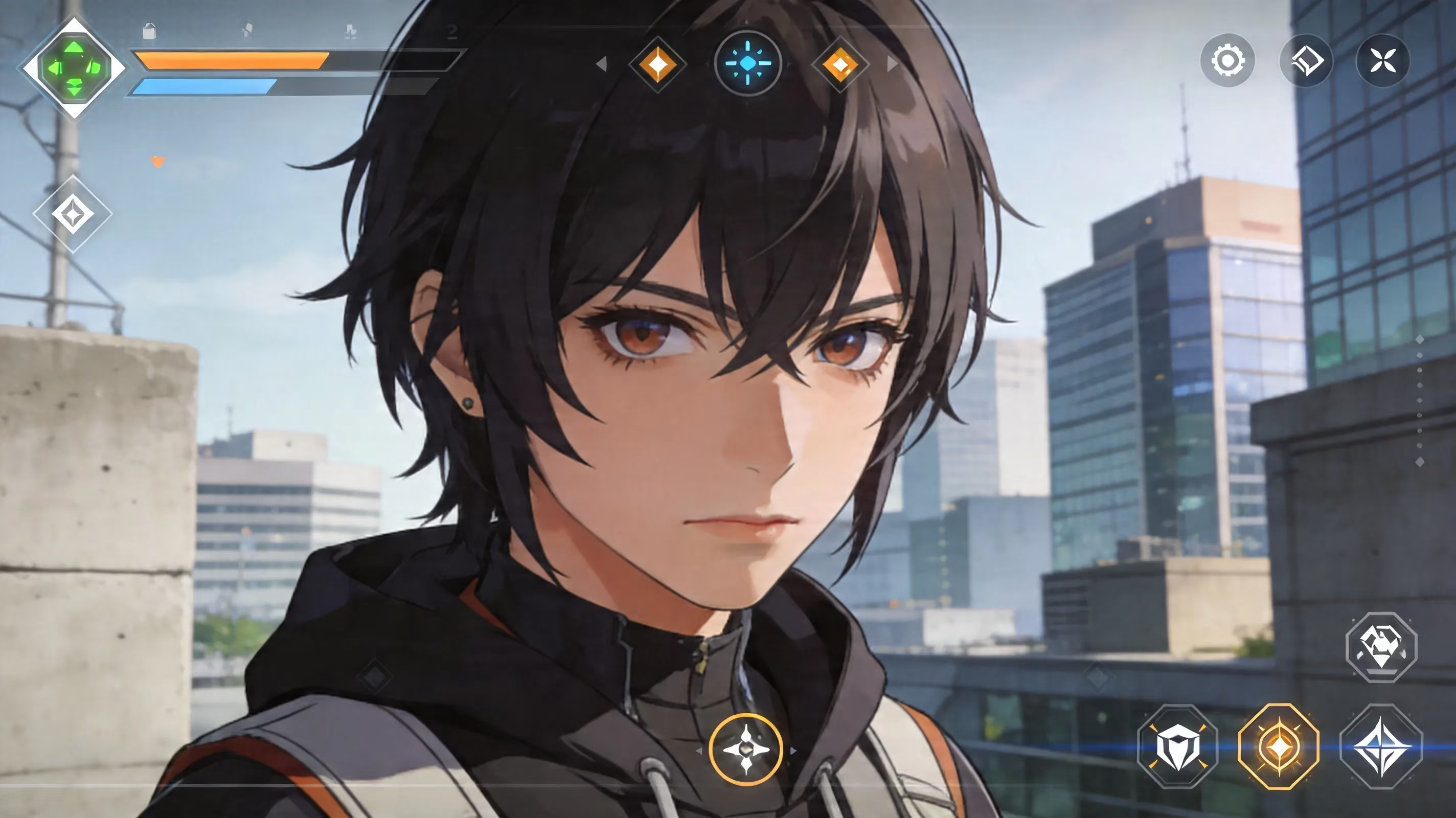
Menu Creator Tool
Another helpful tool available in the ecosystem is the Menu Creator Tool, which can be found on GameBanana under ZZZ Modding Tools. Menu Creator extends the 3DMigoto format by providing in-game menues that you can toggle while using a bind key to switch to when your character is currently in the playing field.
This is particularly beneficial when creating lots of appearance mods. If you have a mod for a character that includes multiple outfits, colours and/or a layer of mesh over the character, you can use Menu Creator to switch between them via an overlay; rather than closing down the game and dragging and dropping files. This gives a much improved convenience for your end-users!
Zenless Zone Zero Mods that Actually Work
As of 2026, there are a great number of ZZZ mods that continue to focus on visually modifying characters; however, there are several utility and quality-of-life (QoL) mods that work consistently well across patches. Mods that are less dependent on character meshes or shader hashes will usually survive with fewer issues than those that rely on those types of assets.
Here are the mods that I can say with pride will usually hold their value long-term.
| Mod | Category | Value | Survival as a Result of an Update |
|---|---|---|---|
| Hide On-Screen UID | UI / Privacy | Low | High |
| No Reload Mod Manager | Utility / Management | Low | High |
| Character Broken Fix | Mesh Stability | Low | High |
| ReShade Vibrant Sharpen | Visual Post-Process | Low / Average | High (ReShade layer used) |
| No Outlines / Transparency Fix | Visual Rendering | Low | Average |
| Audio Replacement Packs (using ZZAR) | Sound | Low | Average / High |
It is safe to say that utility mods stand the best chance of surviving updates. This is due to the fact that utility mods work more on the HUD level and are more geared toward managing gameplay rather than overwriting character asset models; therefore, they experience fewer issues after updates. ReShade-based visual tweaks will have a similar experience with regard to surviving updates because ReShade visual tweaks work off of the final rendered image, not the game’s internal model data.
Character mesh and texture mods have quite a different story to tell. They are more apt to break after an update due to the frequency that HoYoVerse changes asset hashes.
Utility Mods
One of the simplest and most obvious mods that I can recommend is the Hide UID mod. Because all HoYoVerse games require you to have your account UID displayed on your screen, this mod will benefit players because it removes the overlay while retaining gameplay system integrity. The No Reload Mod Manager, offered by GameBanana, allows you to toggle or organize mods through an accessible interface via the keybinding ALT + W. As the number of mods you use increases, it becomes difficult to switch between them without having to restart the game each time. Thus, after it becomes crowded with mods, this mod will prove to be invaluable.
The Character Broken Fix isn't very flashy, but it fixes something important. It can be added to your Mods folder and be left there, and it will fix any errors in vertex buffer matching on character models when particular appearance mods are applied. Many of the online community appearance mods depend upon it to function properly.
Visual and Audio Mods
The ReShade Vibrant Sharpen preset is a very functional visual mod. It adds sharper pictures with more contrast to the final frame of the game. Therefore, will allow for more pronounced details during moments of movement and combat since there is such large amounts of motion blur during these actions. Where you would see the sharpness increase with the use of this mod is in background images/models while an individual is wandering around, in the menu system, and when cutscenes are playing. Your performance capabilities while using the mod will be based upon your Graphics Processing Unit and the complexity of the ReShade chain. However, most users will be able to find a satisfactory level of performance.
The No Outlines / Transparency Fix mod eliminates the transparent "fade" when your camera is too close to a character model. This mod isn't very expensive, but if you are using many appearance mods that are used with your camera, or if you frequently take screens, you will find its impact will be very noticeable. Additionally, several of the bigger visual mod packs also depend upon it.
The audio replacement packs that have been made into .zzar files are looking decent as well. There are audio replacement packs that target alternate voice lines, music swaps or sound effects. Because the ZZAR file format targets the actual SoundBank files as opposed to relying on Streamed_SFX archives which the game doesn't consistently call properly during runtime, they tend to offer more reliability than manually modified .pck files.
Zenless Zone Zero Mod Troubleshooting
If you've installed your mods but nothing has changed in the game, don't panic! Normally there are just two primary reasons for this to happen: Either the game is still running on Vulkan or you launched the game outside of XXMI. In fact, the combination of these two reasons account for the vast majority of instances of mod installation failures.
Another significant reason for mod failure can be due to patching. In the event that a major update has occurred, HoYoVerse routinely rebuilds their shader and asset hash tables resulting in previously created 3DMigoto .ini overrides no longer matching the game assets. When that occurs, it is not unusual for the mods to stop working without throwing any obvious error messages. Usually, fixes for popular mods will be available to you within a few hours. Fixes for lesser known mods may take several days for you to find.
Checklist for Load Failure
If a mod is unable to load, here is how I would recommend troubleshooting:
-
Verify Renderer
-
Navigate to your graphic settings and ensure that you are using DirectX 11 and not Vulkan.
-
Check Folder Structure
-
The mod’s
.inifile will be located one folder in from theModsfolder. - In the event that the extraction of a mod resulted in an additional wrapper directory, you may fail to see the original files (i.e. the files you will need to load the mod) when you download through the loader. -
Ensure you are using the correct dependencies
-
Certain mods can have very specific requirements regarding both the version of XXMI and the version syntax that is to be used for the loader. Most shader-intensive mods will be particularly fussy about this issue.
If you have ever seen your mod or mods that you have unzipped are located in the following directory structure: Mods\ModName\ModName\files and you do not reorganize or flatten this directory structure your mod will not be detected by the mod loader and therefore will not load within the game.
Recovery Procedure for a Patch Breaking Multiple Mods at Once
In the event that a patch breaks multiple mods at once, the recommended procedure is to apply the following sequence of actions:
-
Deactivate all mods loaded within the game
-
Start the game without XXMI and confirm that the base client is functioning properly
-
Re-enable loading of XXMI and verify that XXMI is working correctly
-
Reactivate your mods one-by-one, identify the mod(s) that do not function correctly
In many instances, you can find XXMI 'patch fixes' within the first 24-48 hours after the XXX 'update/patch' is released due to developers recognizing the issues created when new 'updates/patches' create issues with mods. Attempting to load/render with an older version of the loader with a newer version of the base client will at a minimum cause your mods to not inject correctly, and at worst crash your entire game.
Lastly, if you are a Linux/Steam Deck user working with XXMI, there are even more considerations you will need to consider when using U.S. based mods. While the use of Proton to run XXMI is possible, and many of the mods that have been developed by developers to be compatible with Linux (example: TwinTail Launcher) are now being run natively through a locally installed mod launcher (example: ModDrop), using 3DMigoto with Wine can be extremely inconsistent depending upon the version of Wine you are trying to run under. Additionally, some memory reporting errors may lead to game crashes prior to displaying an introduction screen. Therefore, modding on Linux could be accomplished, but the performance will be far less reliable than on a Windows system, which means it would be wise to check community compatibility threads prior to making any large investment.
HoYoVerse's Terms of Service Regarding Zenless Zone Zero Mod Safety and Ban Risk
According to HoYoVerse's Terms of Service, mods/tools that affect gameplay and provide an unfair play advantage are prohibited. This includes anything that automates gameplay, changes damage values, creates superficial maps, or modifies any aspect of how the actual game operates or how the game manages network data.
Cosmetic mods, on the other hand, exist in a much more ambiguous space. Outfit changes, texture alterations, ReShade presets, UI modifications, and audio replacements are not explicitly allowed. However, to date in 2026, there are no recorded bans from playing ZZZ for solely using visual/auditory mods. This does not guarantee that these mods are entirely risk free, as there has not been a significant risk.
However, it becomes far more evident when automation is used in gameplay. Any mod that automates a player's interaction with the gaming process, modifies combat output, or manipulates how gameplay is managed across the internet (via use of a network connection) is far more dangerous. As such, separating automation tools from cosmetic tools is the most important rule for staying safe in a modded gaming environment.
To demonstrate caution, use the following recommendations:
-
During offline/private testing of newly applied mods, use XXMI.
-
Remove all mods before engaging in co-op or competitive play sessions.
-
Refrain from sharing your account information or UID unless absolutely necessary
-
Do not advertise your modding setup in the public chat channel in the game.
The above recommendations for common sense cannot be overstated. Attracting the attention of other players through advertisement of third party products does not only put you at risk; you are also endangering the use of your equipment.
Conclusion
The definitive answer to "modding Zenless Zone Zero" continues to be to set up a PC client through HoYoPlay or Epic, use XXMI from GitHub, force ZenlessZoneZero.exe to launch utilizing -dx11, after confirming compatibility of mods downloaded from GameBanana or Nexus, utilize ZZAR only for audio replacement. If you want immediate/quick Return On Investment (ROI) then utilize mods such as Hide UID, No Reload Mod Manager, and Character Broken Fix. Completing your setup with a ReShade preset and No Outlines will give you all the cosmetics you desire.
If you follow the free update process for your mod loader, disable mods when a major patch is released, and in general only use cosmetic and utility mods in an organized manner, there are hardly ever any major issues regarding modding in 2026 in ZZZ.
Comments